Phone Video to Gaussian Splat: What Works and What Fails
Learn when phone video can produce a usable Gaussian splat, what causes weak results, and how to publish the scene as a guided 3DGS tour.

In this guide
Phone video can produce a usable Gaussian splat for simple spaces when movement, light, focus, and room transitions are controlled.
Short answer
The phone is not the main risk. Fast movement, low light, blank walls, autofocus jumps, exposure swings, and weak transitions usually cause more trouble.
Phone video works best for simple rooms, short walkthroughs, compact listings, small venues, and early workflow tests. It is weaker for dark interiors, glossy spaces, long routes, busy public areas, and projects where the final tour needs premium visual detail.
Real Horizons offers two phone-first routes. Spatial Lens guides capture on iPhone, while ordinary supported phone video can be brought into Spatial Studio for reconstruction. The result can be processed locally on a Mac or through the web workflow, then published as a guided tour.
What usually works and fails
| Capture condition | Good sign | Warning sign |
|---|---|---|
| Camera movement | Slow walking, steady turns, no sudden spins | Fast walkthroughs, whip pans, shaky stairs |
| Light | Even room light with visible texture | Dark corners, blown windows, exposure jumps |
| Surfaces | Furniture, trim, art, plants, shelves, and edges help alignment | Blank walls, mirrors, glass, glossy counters |
| Transitions | Doorways and corners have extra overlap | The route jumps from one room to the next |
| Final tour | The first view, stops, labels, and CTA are planned before capture | The clip is judged only as a raw generated scene |
Practical checklist
- Use the wide camera only when it keeps detail clean.
- Move slower than a social video walkthrough.
- Add extra passes around features that need hotspots.
- Avoid autofocus jumps and exposure swings.
- Check the tour on mobile before sending it to a client.
When to use another capture source
Use 360 video when the job needs broad room coverage and connected interiors. Use DSLR or mirrorless images when the client expects more controlled visual detail. Use drone media when the important context is outside the building. Use a capture app such as Scaniverse or Polycam when quick mobile scanning is the main task.
Phone video is often the right starting point, but it should not be the only option in a paid workflow. The practical stack is capture, cloud generation, review, guided publishing, and measurement. Spatial Studio covers the generation and publishing side, so the team can test phone footage and compare it with 360 footage, drone media, DSLR/photo sets, or mixed captures.
For adjacent workflows, read Video to Gaussian Splat, 360 Video to Gaussian Splatting for Real Estate, and Gaussian Splatting Software.
Common phone-video mistakes
- Recording at walking speed instead of reconstruction speed.
- Letting exposure shift at windows and bright doorways.
- Missing the path between rooms.
- Capturing close to mirrors, glass, and glossy counters without extra angles.
- Sending the tour before checking the opening view and mobile load behavior.
From capture to a published tour
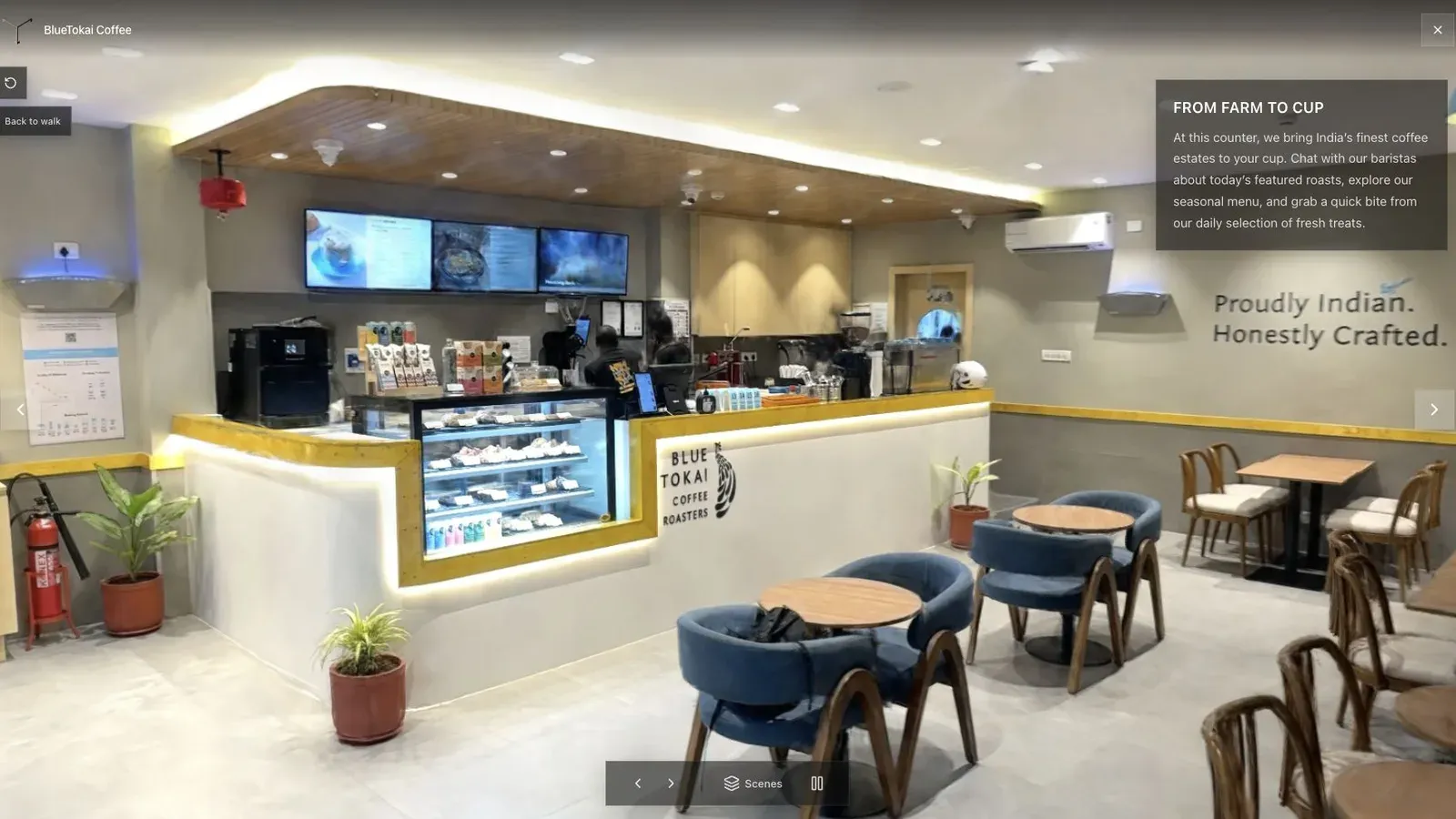
A published cafe tour gives visitors a clear first view before they move through the space.
Scrub the source video before uploading. Look for autofocus pulses, abrupt exposure changes, motion blur on turns, and gaps where a hand or nearby wall fills most of the frame. These are capture problems. They will not be repaired by adding labels later.
After reconstruction, inspect the doorway that felt least stable during recording. Then check thin furniture, window frames, mirrors, and the path around the camera operator. If those areas survive, set the published start in the room that best explains the property, not at the first frame of the clip.
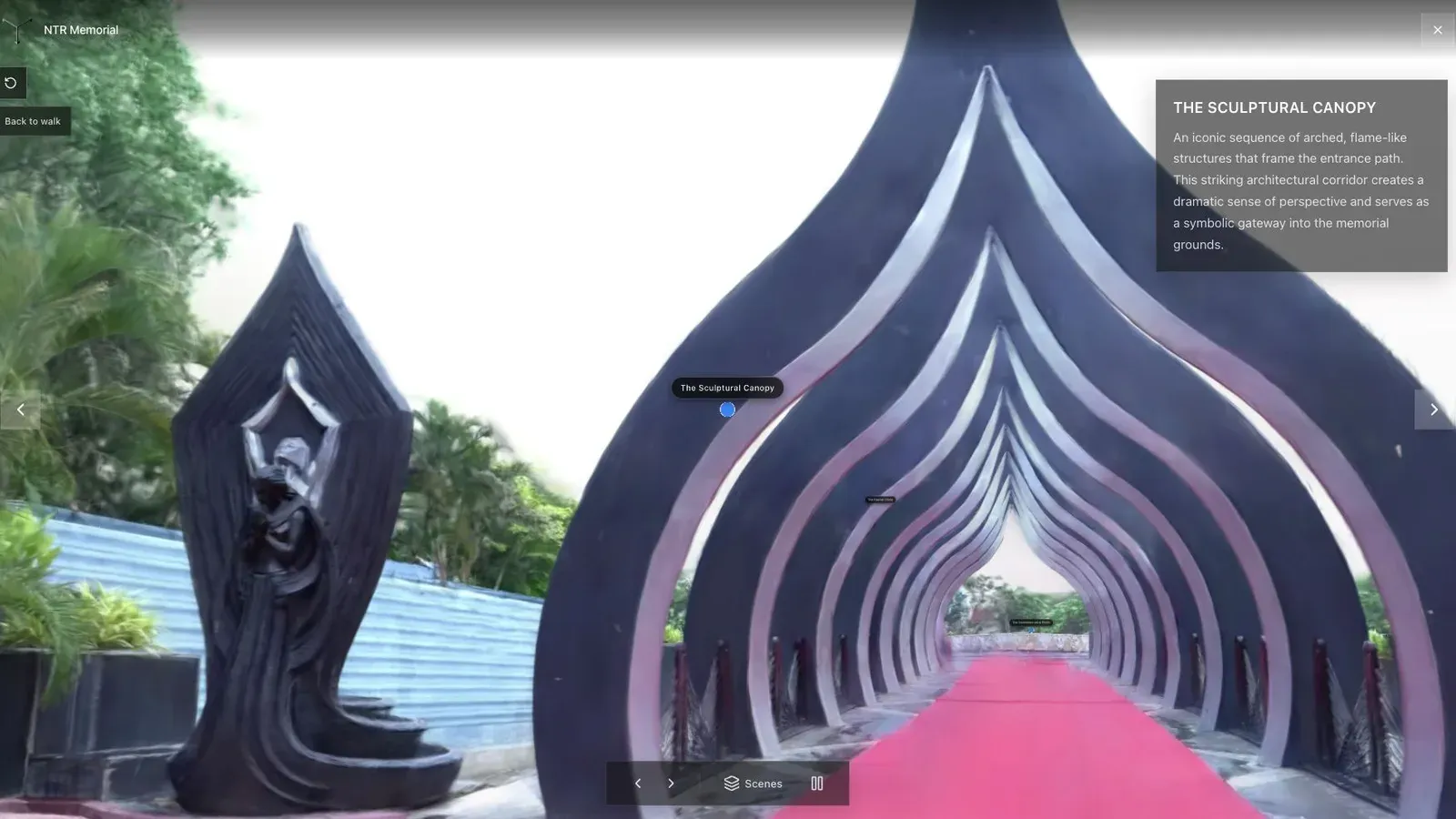
A public-space walkthrough uses a strong opening angle and labeled stops to orient visitors quickly.
Phone video stops being the convenient choice when the site is too long to cover slowly, light changes sharply between zones, or the client needs exterior scale. Spatial Studio lets the team switch to 360, drone, DSLR, PortalCam, or mixed inputs without changing the tour editor and final handoff.
Keep the published route short. A compact listing may need only Entrance, Living Area, Kitchen, Bedroom, and View. Add one next action that matches the client brief, then test the link over mobile data with the sound off and no verbal explanation.
Frequently asked questions
Should I use Spatial Lens or record a normal video?
Use Spatial Lens when guided capture helps you follow a repeatable route. Ordinary video remains useful when you already have suitable footage or need a simple source. Compare both on one space.
Can I process phone video locally on a Mac?
Yes. Spatial Studio for Mac supports local photo and video projects on Apple silicon. The cloud workflow remains useful for other project sizes and publishing.
Do I need a Pro iPhone?
The capture path and supported features can differ by device. The most important practical variables remain stable motion, readable light, overlap, and enough visual texture.
How long should the video be?
Long enough to cover the space slowly, but not so long that repeated or unnecessary footage adds processing burden. Split a large site into a planned workflow rather than racing through one continuous clip.
Related reading
Next step
Pick one simple space, record a slow phone video, generate the splat, and publish it as a guided tour. Compare the finished link against a 360 or photo-set capture before making phone video your default package.
From experiment to paid delivery
Compare the focused phone workflow in Splat Tour vs Spatial Studio, then model a client package with the Virtual Tour Revenue Calculator. Spatial Studio becomes most useful when the phone capture needs to continue into guided authoring, publishing, branding, CTAs, and analytics.
Next step
Generate a splat tour
Use the guide with your own project, or inspect a published example before starting.
Continue reading
Related articles
Capture Workflows
How to Make a Gaussian Splat on Mac from Photos or Video
Create a 3D Gaussian splat locally on an Apple silicon Mac from photos or video. Follow the capture, processing, review, export, and publishing workflow.
Read articleCapture Workflows
Photogrammetry vs Gaussian Splatting on Mac
Compare photogrammetry and Gaussian splatting on Mac by output, geometry, visual quality, capture, editing, measurement, hardware, and delivery workflow.
Read article