DJI Osmo 360 II Gaussian Splatting: Capture Guide
DJI Osmo 360 II is launched. See confirmed camera facts, a first-generation Osmo tour, and a practical capture test for Gaussian splatting.
In this guide
DJI launched Osmo 360 II on September 3, 2026. Here is what that changes for Gaussian-splat capture, what our original Osmo 360 tour demonstrates, and what still needs a production-file test.
The short answer
Osmo 360 II is officially launched. DJI confirms 8K60 spherical video, a 1-inch square HDR sensor, replaceable lenses and 105 GB of internal storage. See DJI's September 3 announcement.
Those are capture specifications. The announcement does not establish a built-in Gaussian-splat generation workflow. Test the camera's exported footage in your chosen reconstruction service before promising a finished 3D tour.
Our public cafe tour demonstrates footage from the first-generation Osmo 360 processed into a navigable splat. It is not an Osmo 360 II test or an X6 comparison.

What changed with Osmo 360 II
The useful upgrade questions are practical: does difficult lighting leave more usable detail, do doorway transitions register, and does the export retain clean edges after stitching? A higher headline frame rate cannot answer those questions by itself.
For buyers also considering Insta360, use the X6 versus Osmo 360 II comparison. X6 has a documented in-app Spatial Capture path. For either camera, distinguish an explorable model from the hosted, guided experience a client needs to receive.
Inspect a real Osmo 360 tour
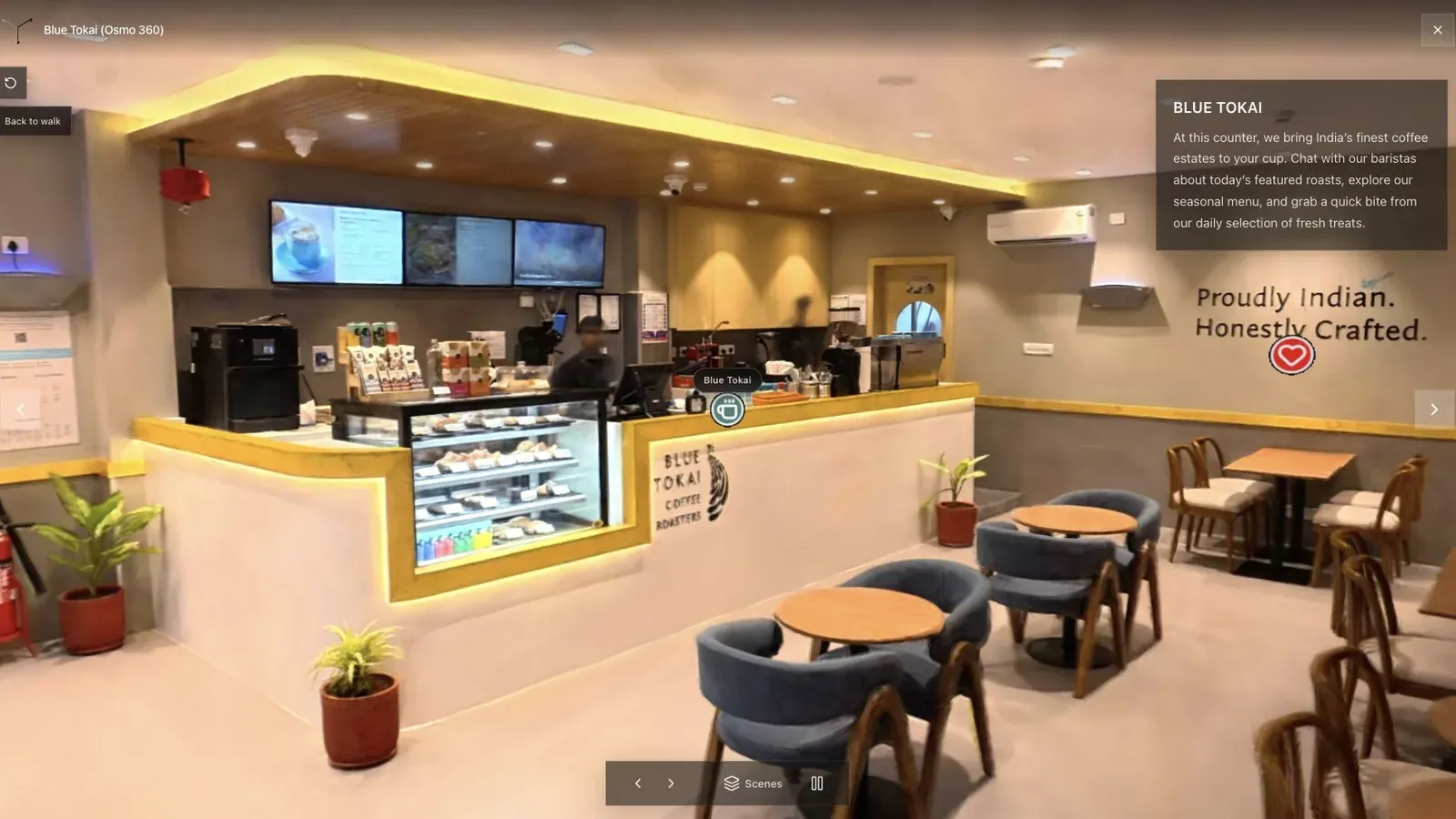
Open the first-generation Osmo 360 cafe tour. Inspect counter edges, reflections, the floor below the camera, and transitions between spaces. Open it on a phone as well as a desktop. This is a useful reference for judging your own result, rather than a guarantee for a different camera or room.
Osmo 360 capture checklist for 3DGS
| Check | Before recording | Inspect after reconstruction |
|---|---|---|
| Route | Walk slowly through connected spaces; repeat difficult doorway transitions. | Missing rooms, disconnected areas or warped door frames. |
| Light | Keep exposure consistent and retain visible surface detail. | Noisy corners, blown windows or abrupt color changes. |
| Stitching | Keep important surfaces away from the lens seam and avoid passing too close. | Broken edges, doubled furniture and unstable thin objects. |
| Movement | Minimize people, fans, screens and other moving subjects. | Ghosts or floating regions that obscure the space. |
| Export | Test a complete 2:1 spherical export accepted by the processor. | A registered scene that covers the complete route. |
| Delivery | Decide the opening view and the visitor's next action. | A usable mobile link with clear navigation. |
Record a short representative test before the full shoot. Include the hard parts of your work: glass, a bright window, a narrow transition and a darker area. A successful easy room is weak evidence for a difficult property.
From Osmo footage to a published tour
- Export the full spherical recording, preserving detail instead of reframing it into an ordinary flat video.
- Open Spatial Studio generation and choose the supported 360 capture workflow. Check the upload requirements before submitting the full recording.
- Review the generated scene. Look for missing coverage and alignment errors before spending time on presentation.
- Set an opening view and guided stops that make the space understandable.
- Add useful labels, hotspots, floor-plan context or a next action where the project needs them.
- Publish the tour and test the link on an ordinary phone, including the embed if a client will use it on a website.
Keep the original footage and note the camera firmware, recording mode, export settings and processing choices. That record helps distinguish capture problems from processing problems on the next job.
Should you upgrade from the original Osmo 360?
Upgrade when a controlled test fixes a real constraint in your current workflow. Compare the same route at similar walking speed and lighting, then use the same reconstruction and publishing settings. Record accepted frames or coverage where available, visible defects, processing time and the amount of repair work needed.
If the original camera already delivers reliable client results, a clearer opening view or better mobile navigation may improve the finished experience more than replacing the capture hardware. If a new camera recovers detail in your difficult rooms, test that benefit across several captures before standardizing it.
Frequently asked questions
Is DJI Osmo 360 II officially available as a product?
Yes. DJI announced Osmo 360 II on September 3, 2026. Check DJI's local store for regional stock and purchasing details.
Does Osmo 360 II create Gaussian splats itself?
The launch announcement reviewed here does not document a built-in 3DGS generator. An external reconstruction workflow remains a separate step to verify with actual camera files.
Can I use my existing Osmo 360?
Yes. Our first-generation example shows an existing Osmo capture converted into a browser tour. Your result still depends on coverage, lighting, stitching and the processing path.
Is Osmo 360 II better than Insta360 X6 for splatting?
We have not completed a matched production-file reconstruction test of both cameras. Use our comparison and test checklist to evaluate the workflow without treating camera specifications as a quality ranking.
Related guides
Next step
Generate an Osmo splat in Spatial Studio
Check the first-generation example, then process a short export from your own camera before a full client shoot.
Continue reading
Related articles
Capture Workflows
360 Camera Gaussian Splatting: From 360 Video to 3DGS
Compare 360 cameras for Gaussian splatting, then turn 360 video into 3DGS. Covers Insta360, DJI Osmo 360, capture, processing, and publishing.
Read articleCapture Workflows
How to Make a Gaussian Splat on Mac from Photos or Video
Create a 3D Gaussian splat locally on an Apple silicon Mac from photos or video. Follow the capture, processing, review, export, and publishing workflow.
Read article